
Accessing the Hub
Steps to log in:
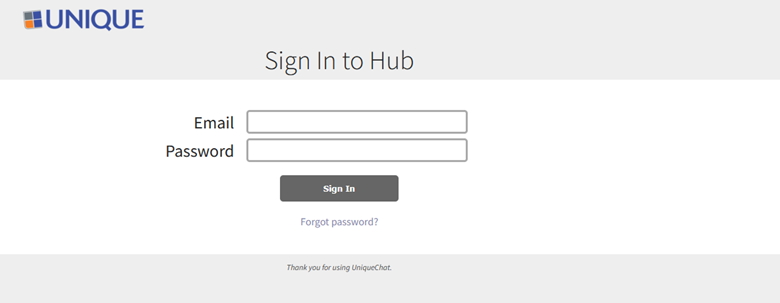
- Navigate to the UniqueChat Hub login page.
- Enter your username and password.
- Ensure multi-factor authentication is completed, if enabled.
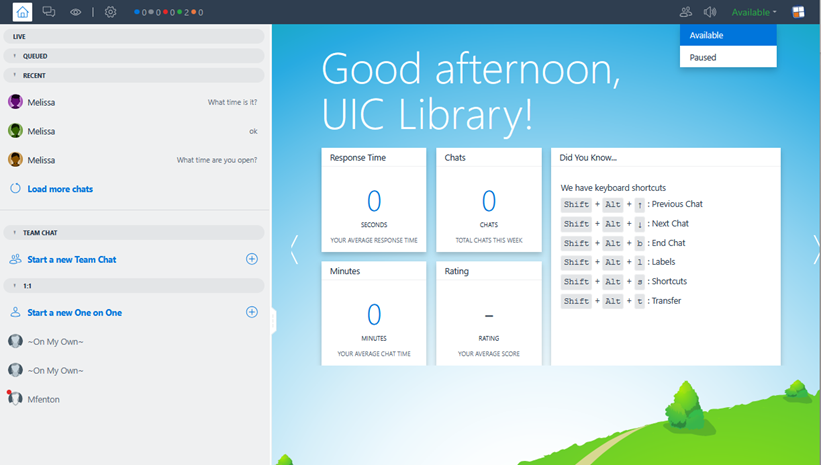
- Confirm you are set to Available status before beginning your shift.
AGENT SETTINGS:
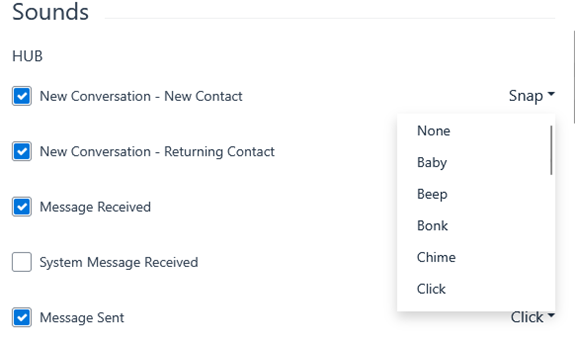
This allows the agent to set their preferences for the notification sounds (they have a variety to choose from), set light theme/dark theme, desired time display and desired temperature display (Fahrenheit/Celcius).
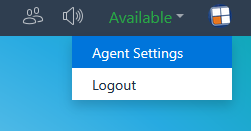
Agent can access Agent Settings by clicking in the icon in the upper right corner and selecting “Agent Settings” and may then scroll through and adjust their preferences.
RECEIVING AND MANAGING CHATS
How Incoming Chats Appear:
- Chats will pop into your queue within the Hub interface.
- You will hear an alert sound (if enabled) and see the chat listed under Active Conversations.
Hub Screen seen by agents:
- Left panel – Inbound chats
- Middle panel – where you engage with chats (read and type reply)
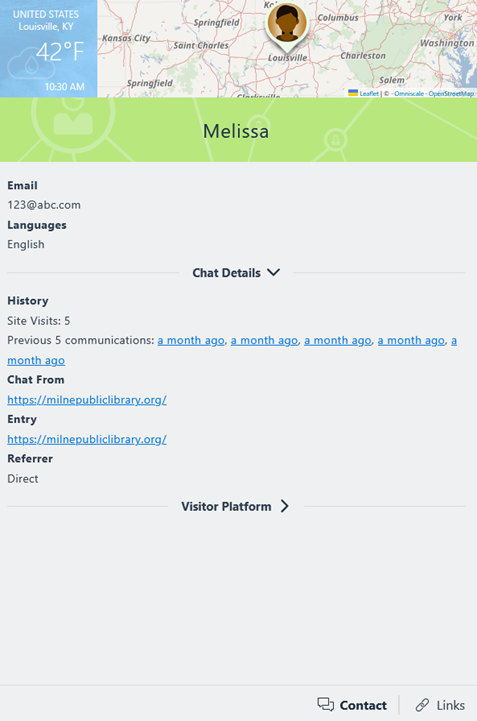
- Right Panel – Detailed information regarding the chat
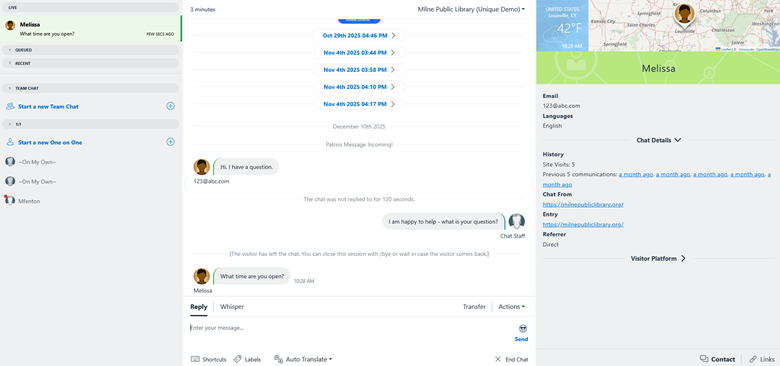
LEFT PANEL:
View of chat activity - the Chat Tracker uses color indicators to display system activity and agent status.
- Blue: Chats currently in progress
- Grey: Incoming chats
- Red: Visitors waiting in the queue
- Green: Agents online
- Yellow: Agents paused
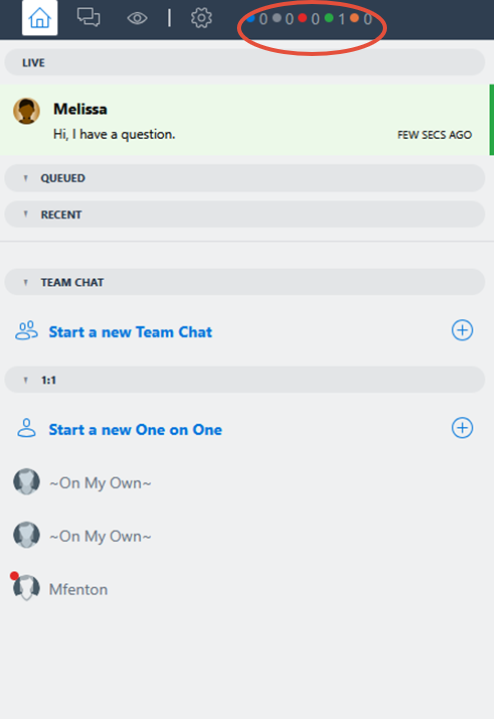
Live – incoming chats that need response
Queued – incoming chats that are queued (in line)
Recent – Most recent chats that have been addressed
Team Chat – Internal chat that can occur between online team members.
1:1 – Internal One on one chat
MIDDLE PANEL:
How you engage with the visitor/chat. Read the question and respond by typing your message and hitting enter or send.
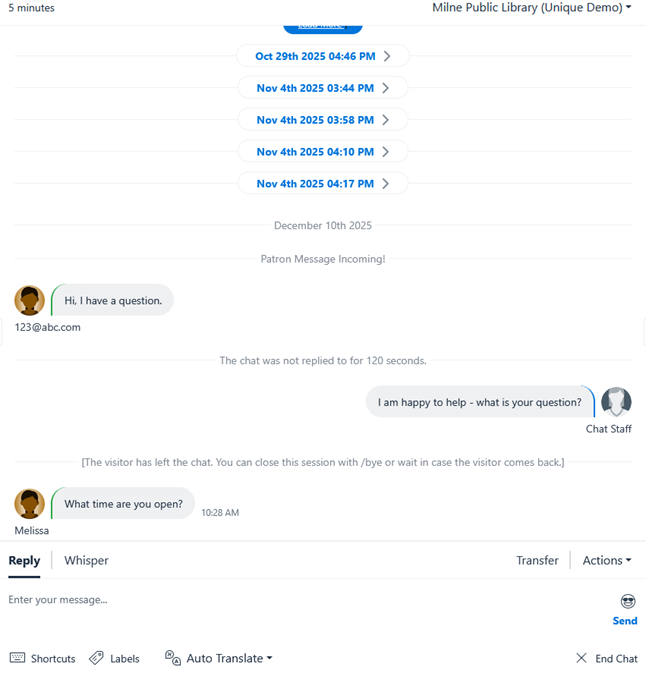
TO REPLY:
Type in the box as indicated. To send the reply, you will either hit “Enter” or click “Send”
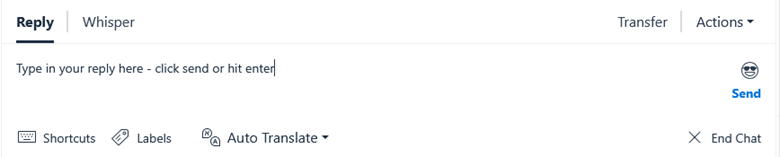
- Transfer – allows agent to transfer the chat to another online agent.
- Actions – provides agent the ability to Ban User, End Chat, Request a file (if allowed), Send a File (if allowed), Request Secure Data (if allowed), Copy Chat to Clipboard.
- Whisper – allows supervisor or support-lead communicate privately with the agent — while the agent is interacting with a customer — without the customer seeing or hearing that communication.
- Shortcuts – Canned messages for common responses. Agents can click on the Shortcuts button or press the backslash key (\) and type in a designated shortcut. Each shortcut is limited to 450 characters. Shortcuts are useful for frequently used responses or instructions.
- Labels – Allows agents to tag/categorize each interaction. Click on Labels to prompt the labels window to modal and the agent can then select the label most relevant to the interaction.
- Auto Translate – Allows agent to easily switch between languages, if necessary.
- Emojis – Click on the smiling icon and agents can select from a variety of emojis to include in their reply.
- End chat – Allows agents to close a chat (please note, if using labels agents will be prompted to select a label prior to closing).
RIGHT PANEL:
Information about the visitor.
Banning a User:
If necessary, consult with your chat supervisor before banning a user.
To temporarily ban a user:
- Select Actions
- Click Ban User
This creates a cookie-based ban for 24 hours.
*This is dependant on the user’s browser settings or device configuration.
Labeling/Tagging a Chat
Once a conversation is underway, agents must assign a label to the chat.
- Click the Labels option next to Shortcuts.
- Select the appropriate label.
⚠️ Labels must be applied before ending a chat.
Ending a Chat:
To close a chat:
- Confirm a label has been applied.
- Click the X on the End Chat option.
This will wrap up and close the conversation.
Logging Out
At the end of your shift:
- Click the profile/human icon in the top-right corner.
- Select Log Out.